
Formative
Formative: audio isn't recording in LockDown ("Audio is not accessible")
Overview
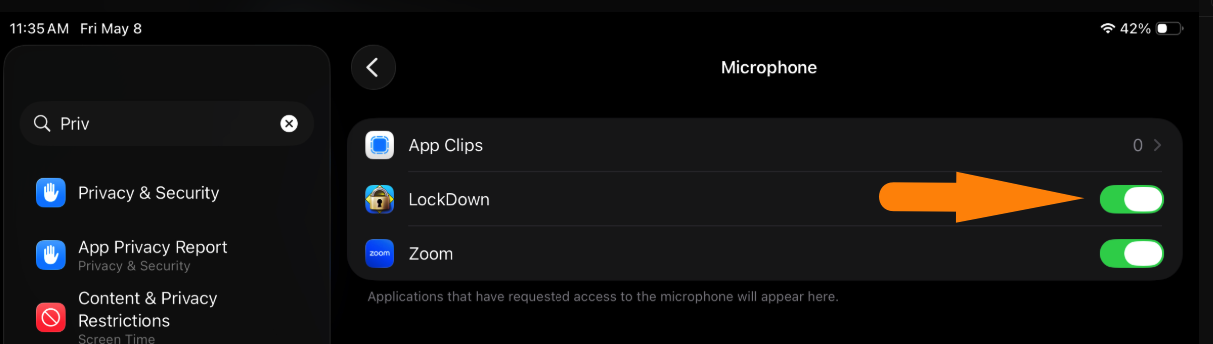
This helps when students can't record audio answers in Formative when it opens in LockDown on an iPad.
What you'll see
When trying to record, students see the message: "Audio is not accessible".
Fix
1. Open the Settings app on the iPad.
2. Go to Privacy & Security.
3. Tap Microphone.
4. Find LockDown in the list and make sure it's turned on.
 If it still doesn't work
• Test the iPad microphone in another app, like Voice Memos, to make sure it works.
• Force-quit and reopen both LockDown and Formative.
• Restart the iPad.
• Check that the iPad has the latest update.
Contact IT if: LockDown isn't in the Microphone list, the switch is grey and won't turn on, or the iPad needs an update it won't let you install. Only IT can change those.
Note: LockDown restricts iPad features like the camera and screen recording, so students can't use those while in LockDown, and may not be able to take a screenshot of the error.
If it still doesn't work
• Test the iPad microphone in another app, like Voice Memos, to make sure it works.
• Force-quit and reopen both LockDown and Formative.
• Restart the iPad.
• Check that the iPad has the latest update.
Contact IT if: LockDown isn't in the Microphone list, the switch is grey and won't turn on, or the iPad needs an update it won't let you install. Only IT can change those.
Note: LockDown restricts iPad features like the camera and screen recording, so students can't use those while in LockDown, and may not be able to take a screenshot of the error.
If it still doesn't work
• Test the iPad microphone in another app, like Voice Memos, to make sure it works.
• Force-quit and reopen both LockDown and Formative.
• Restart the iPad.
• Check that the iPad has the latest update.
Contact IT if: LockDown isn't in the Microphone list, the switch is grey and won't turn on, or the iPad needs an update it won't let you install. Only IT can change those.
Note: LockDown restricts iPad features like the camera and screen recording, so students can't use those while in LockDown, and may not be able to take a screenshot of the error.Updated Oct 7, 2026 1:11 PM