
Mac computers
Webcam not working in Zoom
Use this guide if:
• Your video isn't showing in Zoom even though the camera is turned on.
• Your camera won't turn on during a Zoom call.
 Troubleshooting steps
1. Disconnect your webcam from the computer.
2. Restart your computer.
3. After the computer has fully restarted, reconnect the webcam.
4. If the problem continues, plug the webcam into a different USB port.
5. If steps 1–4 don't work, open System Settings > Privacy & Security > Camera.
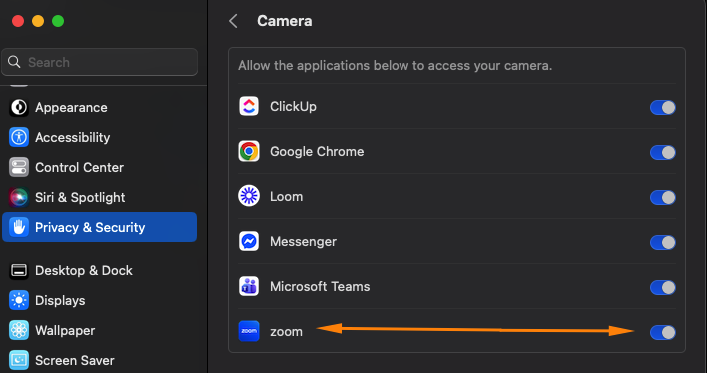
6. Find Zoom in the list and make sure it's turned on, as in the picture below.
Troubleshooting steps
1. Disconnect your webcam from the computer.
2. Restart your computer.
3. After the computer has fully restarted, reconnect the webcam.
4. If the problem continues, plug the webcam into a different USB port.
5. If steps 1–4 don't work, open System Settings > Privacy & Security > Camera.
6. Find Zoom in the list and make sure it's turned on, as in the picture below.
 Contact IT if: Zoom isn't in the list, the switch is grey or asks for an administrator password, or the camera still doesn't work after these steps. Only IT can change those settings on school computers. If the webcam or its cable is damaged, submit a ticket for a replacement.
Troubleshooting steps
1. Disconnect your webcam from the computer.
2. Restart your computer.
3. After the computer has fully restarted, reconnect the webcam.
4. If the problem continues, plug the webcam into a different USB port.
5. If steps 1–4 don't work, open System Settings > Privacy & Security > Camera.
6. Find Zoom in the list and make sure it's turned on, as in the picture below.
Contact IT if: Zoom isn't in the list, the switch is grey or asks for an administrator password, or the camera still doesn't work after these steps. Only IT can change those settings on school computers. If the webcam or its cable is damaged, submit a ticket for a replacement.Updated Oct 7, 2026 1:11 PM