
Mac computers
Zoom audio problem (no sound or microphone)
This is for Zoom audio problems such as no sound, static noise, or a microphone that isn't working.
1) Check the physical connection first
1. Plug the school-issued headset directly into the Mac/computer (or the silver box behind the monitor, if that is the correct audio connection for that station).
2. Make sure the headset plug is fully inserted.
3. Check the headset cable for:
• Tears or exposed wires
• Loose connections
• Heavy tangling or damage
Contact IT if the headset or cable is damaged. Don't keep using it: submit a ticket for a replacement.
Common issue: some students plug the headset into the monitor. If the headset is connected to the monitor, Zoom may not detect it.
2) Confirm Zoom detects the headset
• Join any Zoom meeting or class (so the audio settings are available).
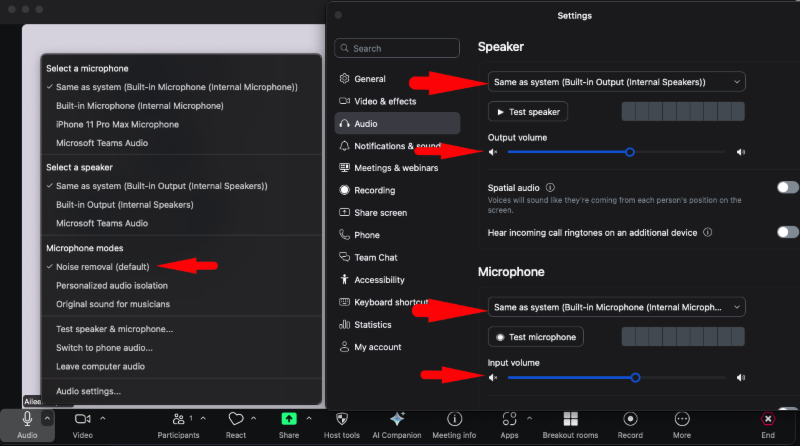
• In the Zoom meeting controls, click the arrow (^) next to the Audio / Mute button.
• Confirm the correct devices are selected:
• Speaker: ideally Same as System, or select the headset if it appears
• Microphone: ideally Same as System, or select the headset if it appears
3) Check the key Zoom audio settings
• Open Zoom Audio Settings (from the same audio menu, or Zoom settings).
• Confirm these items:
• Noise Removal is turned on (helps reduce background and static noise).
• The speaker and microphone are set correctly (the speaker is set separately from the microphone).
• Adjust the levels if needed:
• Turn the Output Volume (speaker) up or down
• Turn the Input Volume (microphone) up or down
4) Check again after making changes
• Test audio with Zoom's Test Speaker and Test Mic options.
• If the headset still doesn't appear as an option, unplug it, plug it directly into the computer again, then check the Zoom audio menu again.
 Contact IT if: the headset still doesn't show up in Zoom, or you still have no sound after these steps. Submit a ticket and include the computer or station you're using.
Contact IT if: the headset still doesn't show up in Zoom, or you still have no sound after these steps. Submit a ticket and include the computer or station you're using.Updated Oct 7, 2026 1:10 PM